
My $1.34 Ad Campaign
One of the lesser known benefits of Kindle Select is the ability to create Amazon ads. There it was, the ad button, beckoning me. Of course I pressed it.
At the end of this past week my ninety-day exclusive Kindle Select contract with Amazon expired. One of the lesser known benefits of Kindle Select is the ability to create Amazon ads. There it was, the ad button, beckoning me. Of course I pressed it.

"Maybe it does something good, maybe it does something bad."
You have two ad options: sponsored or product. Sponsored ads appear with keyword searches. Products ads appear when people look at specific books.
I chose Sponsored. You enter the title and description text for your ad, choose a daily budget and your keywords. Amazon suggests several based on phrases which have led to your book, but you can add custom ones.
And now, the tough part: determining the maximum bid for each keyword. When someone enters your search phrase, Amazon checks all the active ads using these phrases and the highest bidder wins. The actual bid will be one penny above the second place bidder.
Note you don't actually pay anything at this point. This gets you an impression (that is, your ad appears on the search page). Impressions are free. You only get charged if someone clicks on the ad.
What happens after the click doesn't matter. You pay once the click occurs, regardless if a sale occurs.
So, the internet told me to expect 1 click every 1000 impressions. Somewhere between 1% - 10% of those clicks will turn into sales.
And...math. My 99 cent book pays me a 35 cent commission. If I could miraculously manage a 100% click-to-sales rate, then it would be unwise to pay more for a click than my commission ($0.35). At a 10% click-to-sales rate, I shouldn't pay more than 1/10 of my commission. This caps my bid at a depressing $0.03.
So, I start with that, just to see what happens. And....zero impressions. Everyone's bids are higher than mine.
In the spirit of science, willing to take a loss, I up the bid. My max daily budget is capped at $6, so, I can't get into too much trouble. Amazon's ad dashboard actually encourages tinkering by showing you all of your keywords, bid amounts, impressions, clicks, and sales.
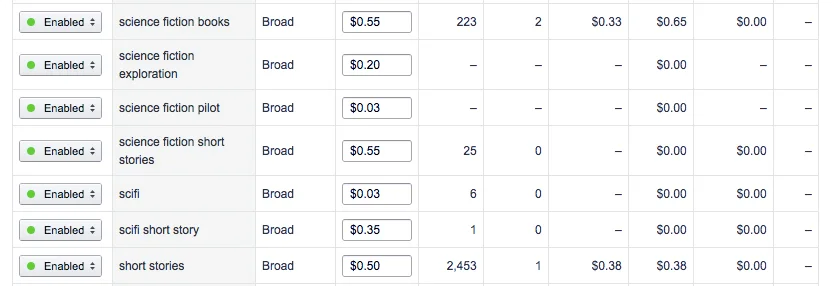
You can quickly deduce from the screenshot that "science fiction books" at 2 clicks in 223 impressions is a much better match than the general "short stories" at 1 click in 2453 impressions.
After after two days, my rate looked like this:

Similar to what the internet told me. One click every thousand impressions. My average winning bid was $0.34. Which, incidentally, means that my book would need to sell at $4.85 to break even on the ad.
I think that, with some keyword tinkering, I could probably lower my max bid and still get impressions with better targeted keywords. You can see "sci-fi" in the first screenshot has a CPC bid of $0.03 and still got 6 impressions. I think, though, it's probably not worth it to do ads for 99 cent books.
The real time analytics of the dashboard were helpful though to see how different keywords performed, and this gave me some data to update my book's regular sale keywords.
At the end of the ad run, I only had the 3 clicks, costing me $1.34. There were no sales, but I did get some insight into how different keywords performed, which was not a bad investment for a little more than a dollar.
Take My Book, Please
Recently I tested the Facebook Boost Post button, despite the internet telling me never to press it, and, not surprisingly the only effect it generated was vacuuming a ten dollar bill out of my wallet.
I've been trying inexpensive marketing experiments. Recently I tested the Facebook Boost Post button, despite the internet telling me never to press it, and, not surprisingly the only effect it generated was vacuuming a ten dollar bill out of my wallet. Like a gambler watching the dealer scoop up the chips of my losing hand, I slapped another ten on the table, took a swig of my drink, and said, "Deal 'em again, Sam."
I decided to change up the game, however. The past two week experiment has been with Amazon Giveaways. Amazon makes it very easy to set up a Giveaway either for your physical or digital book. Just scroll to the bottom of your reviews, and you will find the Giveaway button after the last review:

Next, you choose your lottery options. I chose Random, 1 in 50 chance, 10 prizes to give away. Amazon informed me this would result in somewhere between 450 - 500 entrants. Note you are purchasing however many copies you plan on giving away at the time that you set up the giveaway, but on the plus side you will get royalties for these purchases (at some point, more about that later):

Next, you set any requirements to enter. You can set no requirements, or require people to follow you on Twitter, or Amazon, view a video, or take a poll. I chose Follow S.D Falchetti on Amazon:

Incidentally, you should follow yourself on Amazon. This way you will see what the button does. As I suspected, followers get notifications of your new releases with links to buy them.
You set the duration (I chose the default 15 days). There's also a legal note that only US residents can enter, which seems to be an Amazon requirement.
On the last screen, you add your win/lose messages, and product details:
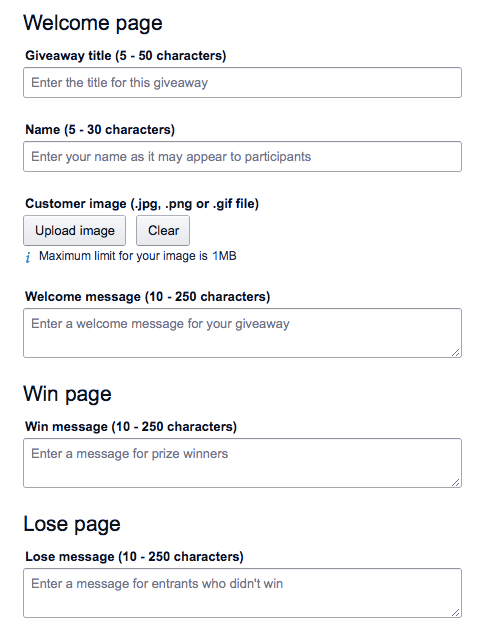
In the win message, I thanked them for entering and asked them to leave a review. In the lose I suggested they download the free sample.
You can also upload a custom image for the giveaway. I suggest doing this, because I left it at the default Amazon product image which resulted in Twitter cropping the book cover to this:

There is no way to edit the Giveaway once you submit it. The only way I was able to fix this was by making a custom graphic and using Twitshot to attach it to the link:

Once you submit it, it will go live probably with an hour. It's up to you how to promote it:
- Share the giveaway link directly with a specific audience (email it just to your newsletter followers, for example)
- Share it with everybody. The easiest way to do this is to use the #AmazonGiveaway hashtag in Twitter, which will be picked up and retweeted. I should mention that many people enter giveaways for fun, and not everyone who wins a copy will read it.
I posted it on my Twitter account with the #AmazonGiveaway hashtag. Within one hour 380 people (out of 500) had entered, winning 7 of the 10 books. Then, it petered to a trickle. I got 1-10 entrants per day for the remaining two weeks. Two more books were won, and I was left with one unclaimed book when the giveaway ended. Amazon allows you to set up a new giveaway for unclaimed books, or simply gift them to people. I gifted it.

How it all panned out:
- 9 out of 10 prizes claimed, most within the first hour
- 460 new Amazon followers
- Zero new sales
Royalties:
- As people won prizes, royalties for those prizes showed up on my royalties report.
Sales Reports:
- The 10 books I purchased as prizes did not show up in my sales report until all 10 books were claimed. Because I had one book left after the giveaway concluded, it was not until I gifted that remnant and the person accepted the gift that all 10 sales showed up in my sales dashboard at once.
Sales Rank:
- The giveaway had zero effect on my Amazon sales rank, even when the 10 books finally showed up in my sales dashboard. I found this odd because if I bought ten copes and simply gifted them, they would show up as both sales and sales rank.
Reviews:
- I'll admit, I didn't expect any reviews. Review-to-purchase ratio on Amazon is between 0.1% - 1%, so you really need to sell more than a hundred copies to have a chance at one review. But, one of the prize winners did leave a 5 star review (thank you! you're awesome!). She wrote:
I won this through a giveaway and very thrilled I read it. Once I started reading it I couldn't stop. Would of definitely bought and looking forward to reading more from the author.
All in all, not a bad experience. I picked up a few hundred Amazon followers, who will get notifications as I publish new releases, and a 5 star review. I might do it again for another book.

Tales of a Rookie - Part 3
Last week I posted a book trailer for 43 Seconds on my Facebook page. You may have noticed an enticing "Boost Post" button sits at the bottom of your page posts. I've always ignored it. But there it sat, calling to me like a siren leading a sailor to rocks.
Self-promotion is a necessary evil of indie publishing. I could just hand it over to my agent, except I'm my agent. I feel a bit like Barf from Spaceballs:
Last week I posted a book trailer for 43 Seconds on my Facebook page. You may have noticed an enticing "Boost Post" button sits at the bottom of your page posts. I've always ignored it. But there it sat, calling to me like a siren leading a sailor to rocks.
So I Googled it, and the internet told me never to press that button. Instead, just go light a handful of my own money on fire. It would have the same effect.
Of course I immediately pressed the button. Sure, the wisdom of the internet said it was pointless, but I was willing to conduct a ten dollar experiment. The boost button creates a type of ad which shows up in people's feeds. Just like regular ads, you configure your target audience and create a duration. When the duration and money are used up, the ad ends.
I boosted my video trailer for two days in the United States targeting men 18 - 55 using keywords related to science fiction. I added a link to my Amazon's book page with a teaser "Hop in the pilot's seat with James for 99 cents at http://amzn.to/28TDGpt." As the two days progressed, Facebook sent me cheery updates about all of the extra reach my post achieved. At the end, it gave me a summary:

Fifteen hundred people reached (which means, appeared in their newsfeed) with 364 video views. Facebook autoplays videos, so this was really 364 autoplays. 27 people actually clicked the play button on the video. Zero people clicked on the teaser link. The Likes/Shares were existing Facebook page fans.
Interestingly, demographics are also reported. Twice as many people in the 18-24 year old bracket had the video play in their feed. Because these were autoplays and not actual clicks, I interpreted this as 18-24 year olds were more likely to have the science fiction keywords in their interests, meeting my ad criteria. It's also possible Facebook simply has more users in the 18-24 age bracket than older brackets.

Lastly, the final test: sales. No impact on book sales. Doh! The wisdom of the internet was right.

43 Seconds Trailer
I made a short trailer for 43 Seconds using Adobe Spark. If you haven't used Adobe Spark, it's very easy, and, best of all, free.
I made a short trailer for 43 Seconds using Adobe Spark. If you haven't used Adobe Spark, it's very easy, and, best of all, free.


Tales of a Rookie - Part 2
I decided to self-publish 43 Seconds on Kindle Direct Publishing because I loved the idea of owning the project start to finish. KDP is remakably easy to use. It’s really just a few screens of selections, followed by pushing the “publish” button.
I decided to self-publish 43 Seconds on Kindle Direct Publishing because I loved the idea of owning the project start to finish. KDP is remakably easy to use. It’s really just a few screens of selections, followed by pushing the “publish” button. The steps were:
Create an account
Upload my story (in this case, a .mobi file generated from Scrivener)
Upload my cover art
Enter my product details (title, blurb, author name, etc)
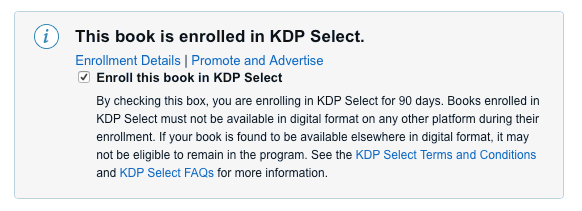
Choose if I wanted to enroll in Kindle Select (90 day exclusive contract with Amazon) or just Kindle Direct (non-exclusive)
Select my markets/royalty options
Click publish
Once I clicked “publish”, the story went into Pending status. After thirty minutes, it was live.
The main decision point was Kindle Select versus Direct. I chose Select (90 day exclusve contract) for the following reasons:
People with Kindle Unlimited can read it for free (more people may see it, and potentially leave a review)
I can choose five promotion days where I can offer the book for free, or at a discount. The days do not need to be consecutive. I planned offering them the first weekend after launch to try and get more people to see it, and potentially leave a review.
I don’t have any other markets yet (iBooks, epub) for the story, so I wasn’t losing anything by limiting myself only to Amazon for 90 days. I can always add other markets after the 90 day contract.
Once the book was live, I was able to create an Author Central account and begin filling in my bio. This is the page people see when they click your name on Amazon. It has options to link your personal website/blog, so I hooked those up to my blog.

Self-Marketing
I made a Facebook author page, invited my friends, and posted updates about the upcoming free download weekend
I’m also an artist, and have an established Facebook page for selling art. It’s taken me years to grow it to 500+ fans. I did a bit of self cross-promotion and announced the upcoming free download weekend along with links to my writing page. Based on demographics I didn’t think there were many sci-fi fans in my art group, but even if I picked up one or two it was helpful.
I added a banner to my website announcing the free download dates, with a direct link to the Amazon page.
Results
I ran a three day free promotion on Friday, Saturday, and Sunday. Amazon doesn't disclose who bought your books, but it does tell you which Amazon regional site sold them. The results were:
Books sold during the free promotion:
- Amazon.com, 7 sales
- Amazon.de, 4 sales
- Amazon.com.au, 1 sale
The first day after the free promotion I had my first paid sale:
- Amazon.com, 1 sale
Sales in the US, Germany and Australia. Cool! Thanks.
Surprisingly, the 12 weekend sales were enough to get me listed at #23 on the Amazon bestseller list for the category Kindle Short Reads->45 minutes(22-32 pages)->Science Fiction & Fantasy. I noticed the list is dynamic and changes hour to hour. Today, for example, with only 1 sale, I'm listed at #911. Doh. But it was fun being at #23!

I still have 2 promotion days left to spend, which I'll use on another weekend after I get some reviews. In the meantime, I'll try to grow my newsletter and Facebook page, so I can let readers know of those promotions.
And, of course, I'll start working on my next story.

Tales of a Rookie - Part 1
When I first started writing stories, there were three choices for getting words on paper: pen and paper, typewriter, word processor. Things have evolved since then, and now there's dedicated writing software.
When I first started writing stories, there were three choices for getting words on paper: pen and paper, typewriter, word processor. Things have evolved since then, and now there's dedicated writing software. I've tried both Ulysses and Scrivener. I can say it's practically impossible to read a modern writing book without tripping over Scrivener raves. It's what I ended up picking.
Here's my impressions:
Ulysses
- Beautiful, clean interface. Really a joy to type in Ulysses. It actually seems designed to encourage you to write.
- Uses Markdown for formatting. Takes a little getting used to if you don't write in Markdown.
- Projects sync easily with the cloud.
- There is an iPad app so you can access your writing on the go.
- Although there's no reason you couldn't write a novel in Ulysses, it seems best suited for writing smaller works. It seems like it'd be awesome for writing articles.
Scrivener
- Scrivener is all about organization. It's project management software for writers. If you want a place to keep all of your notes, research, character/locations details, and book reviews, plus organize all of the chapters and text of your novel, Scrivener is for you.
- Similar to Ulysses, you chose the format of the project when you export it. You can write the entire draft in single-space Times New Roman if you want, then chose an export preset to put it all in standard manuscript submission format.
- The interface is not very intuitive. It's like trying to guess your way through Photoshop.
- It does have distraction-free writing modes, but Ulysses is much nicer for distraction-free writing
- In a way, it's the opposite of Ulysses. It really shines when you're working on a big, complex project.
Scrivener comes with a few templates, but you'll end up configuring it the way you like. Here's the set up for 43 Seconds:

I started with the default Short Story template and added a few folders:
- First Page Header: lists my name, address, phone and story word count in standard submission format. Only included when submitting to magazines. My preset for Kindle excludes this during compile.
- Back Matter: I purposely moved everything to the end of my book to ensure the free Amazon samples include the first few pages of the story. I didn't want those pages to be all copyright notices and table of contents. My back matter section includes the title page with copyright, table of contents, author's message with hyperlinks to my website, about the the author, and dedication. The table of contents was manually created. If I'd used Scrivener's auto-create TOC function, it would end up at the beginning.
- Blurb: The short pitch for the story that appears on Amazon. I just copy/paste from this when uploading my story to Kindle Direct Publishing. I have some brainstormed variants stored here.
- Reviews: Notes from reviews, as well as review text which may be pasted in the Amazon Review section.
- To Do: Things to fix in the next version.
- Front Matter: I've added the image for my cover, and an "Also By" page. Note when you upload the file to Kindle Direct Publishing, Amazon ignores the cover art in the .mobi file. You need to upload it separately in the KDP screen.
I like to write in Georgia twelve-point font, double-spaced. You can set it up however you like, because you'll configure the output font and spacing in the compile screen. I've installed Kindlegen (available free from Amazon) and created a Kindle format preset, so my output is in Kindle's standard .mobi format.
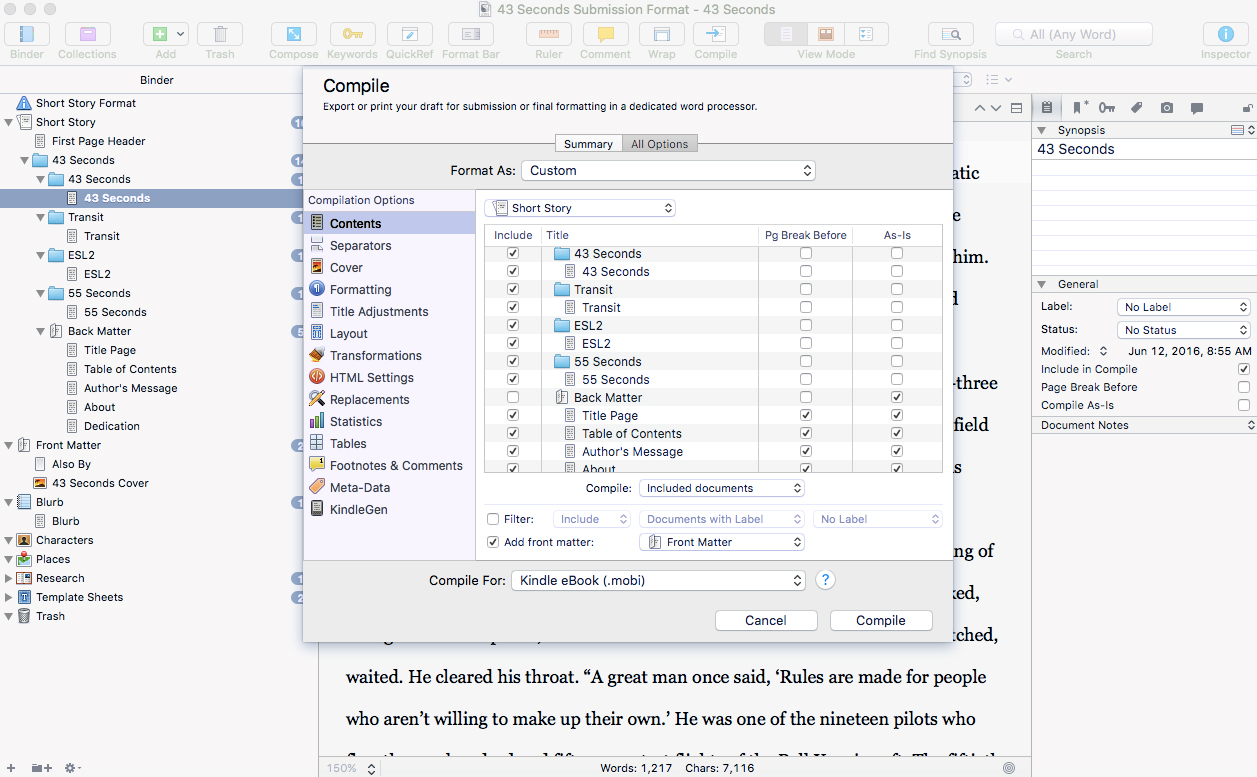
Compiling (Scrivener's lingo for exporting) my story in Kindle .mobi format.
If you own a Kindle, you probably know that you can email documents to your Kindle's email address, and read them on your Kindle. This was great for proofing the .mobi file.
My first readers received pdf versions of the story, and it was simple just to change the compile preset from .mobi to pdf.
That's it! Scrivener is great for organizing your writing. If only they'd finally get around to writing an iPad app for it.
In my next few posts, I'll talk about my experience submitting to Kindle Direct Publishing, enrolling in Kindle Select, and hosting a free promotion.