There any many incredible freeware airports made by talented developers on flightsim.to, but some airports have not been converted from MSFS2020 to MSFS2024. The good news is that MSFS2024 will natively read an unconverted airport. The bad news is that due to a few changes between 2020 and 2024’s SDK, there are a few common issues. The top two are:
Custom objects disappearing as the camera moves away
Custom buildings overlapping default buildings
The first is a LOD (level of detail) issue. MSFS2020 allowed you to create custom objects without defined LODs. The same model would be used no matter how far away the camera was situated, so from a performance standpoint there would be an unnecessary hit rendering tens of thousands of polygons for something that appeared as a speck as you overflew it at thirty-thousand feet. MSFS2024 requires LODs, which involves the developer creating multiple versions of the same object, each with fewer polygons and textures. The sim does a bit of math based upon how big the object appears in the camera view and selects the appropriate level of detail model. If that LOD does not exist, the object winks out of existence. Unfortunately, only the developer can fix this for his airport by defining LODs.
The second issue you can fix on your own with a little know-how. When you create your own airport, you need a way to tell MSFS to hide its default buildings. In MSFS2020, you could create an invisble polygon object to exclude a variety of things, including buildings, or you could create an Exclusion rectangle. MSFS2024 changed the exclusion rules, and depending upon how you masked objects in 2020, the mask may no longer work. This shows up as custom buildings having autogen buildings overlapping them. There is an easy fix, which is to open the SDK and create an Exclusion rectangle with the with correct box checked. Here’s how to do it:
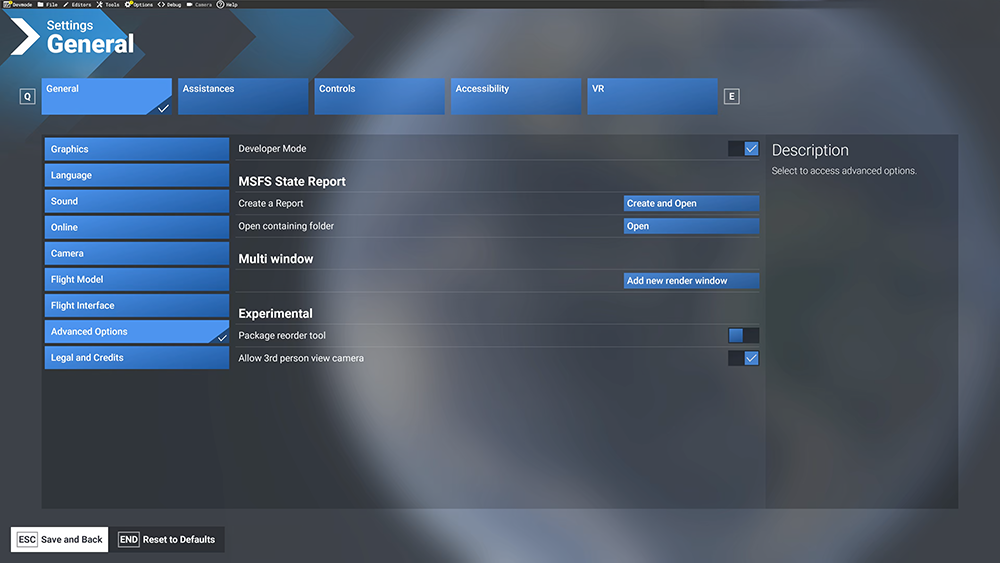
Open Settings, Advanced Options, and check Developer Mode to enable it
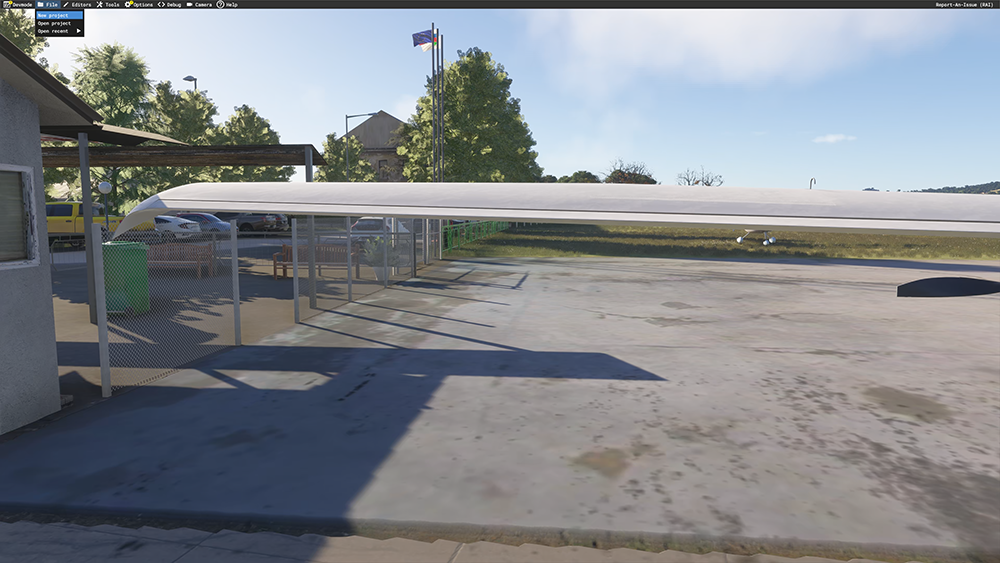
Load into the airport that you would like to fix. Once the airport is loaded, from the Developer menu toolbar at the top of the screen, select File, New Project
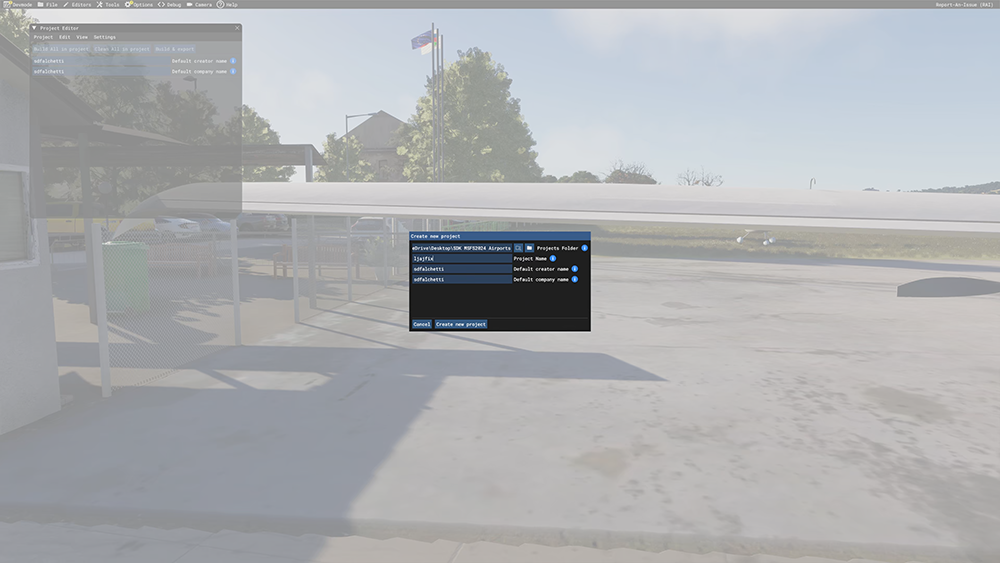
Type whatever name you would like for your Project Name. In this case, I am fixing the doubled buildings in the LJAJ airport, so I simply named it ljajfix. Change the Project Folder path to wherever you would like the file to be saved. In my case, I created a folder on my desktop called SDK MSFS2024 Airports. Note where this is as you will need to find the file later. Click Create New Project
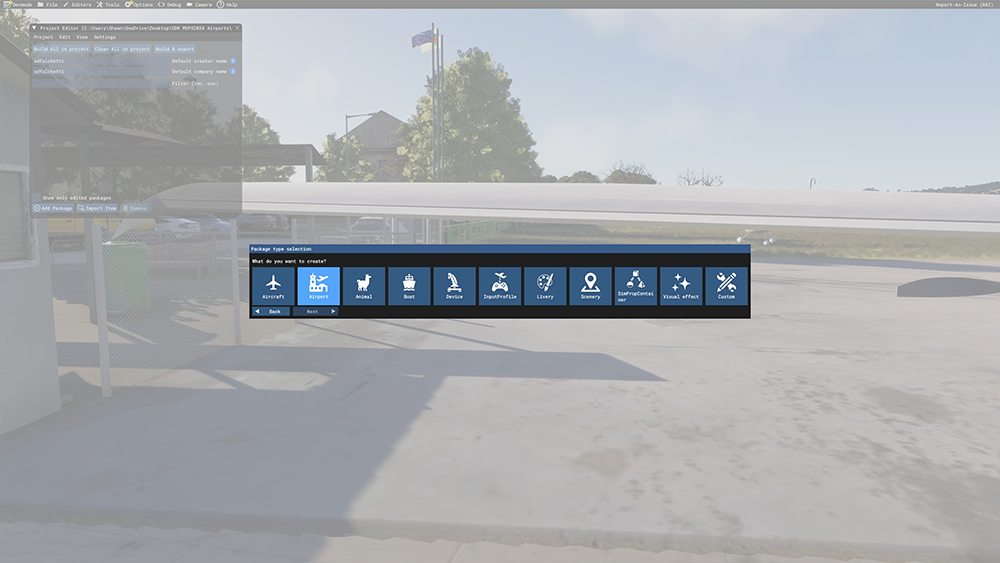
Select Airport for package type and click Next
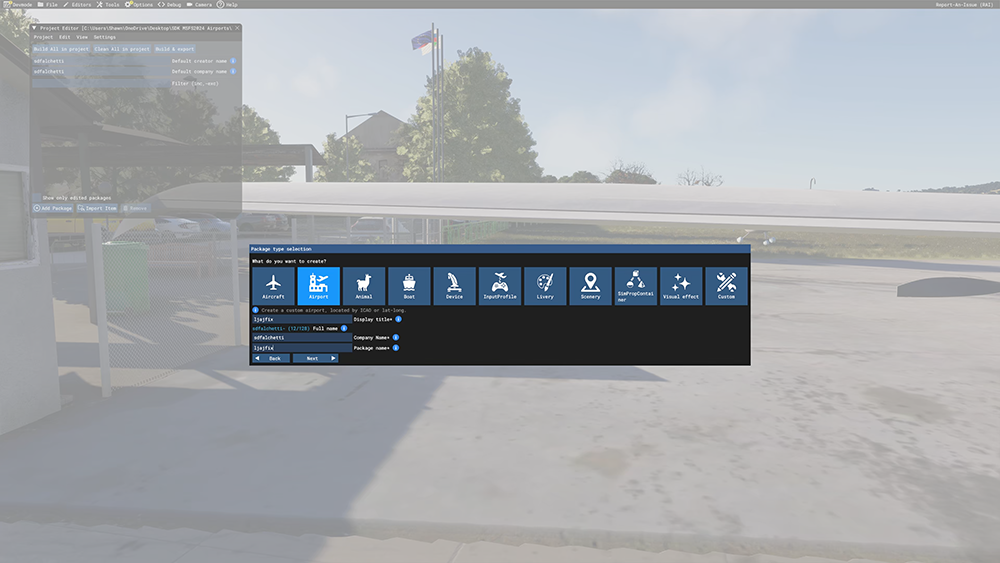
Type whatever you would like your the title and package name. I used ljajfix once again for both of these. Click Next
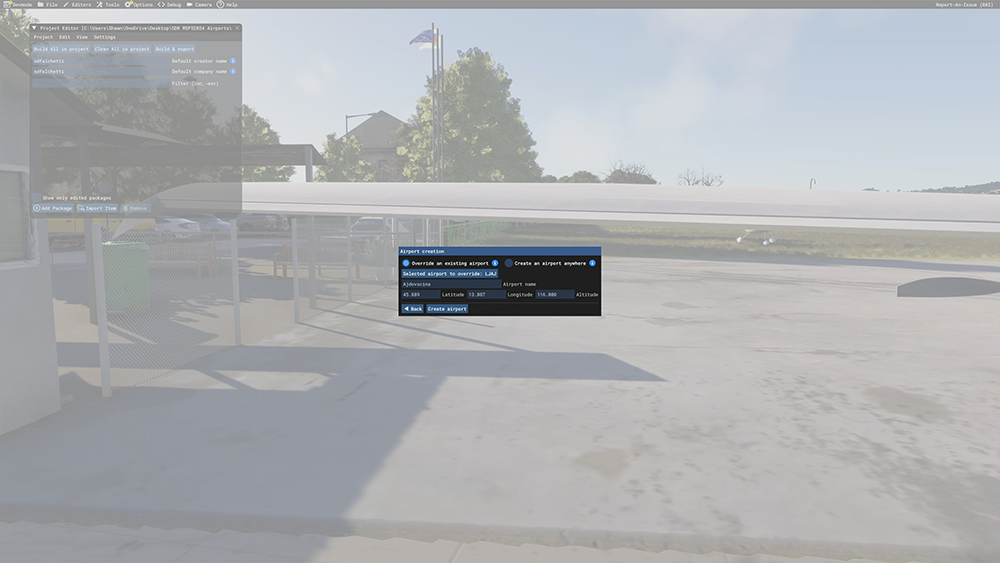
MSFS will ask you if you would like to override the existing airport at this location. Because we are correcting an existing airport (as opposed to making a new airport where one does not yet exist), leave the tickbox Override an existing airport checked and click Create airport.
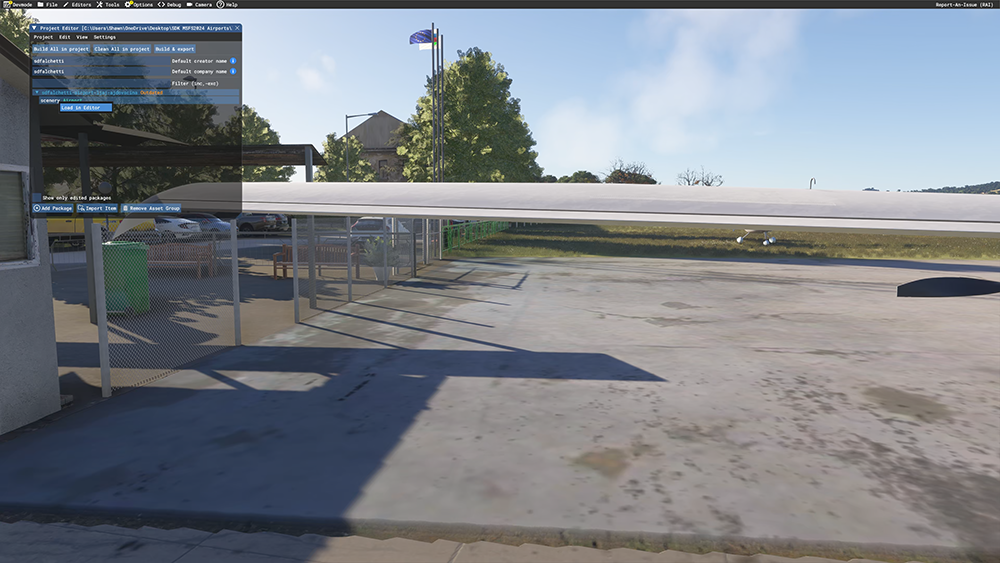
The Project Editor window will open for your newly-created project. Under the package title, right-click Scenery and select Load in Editor
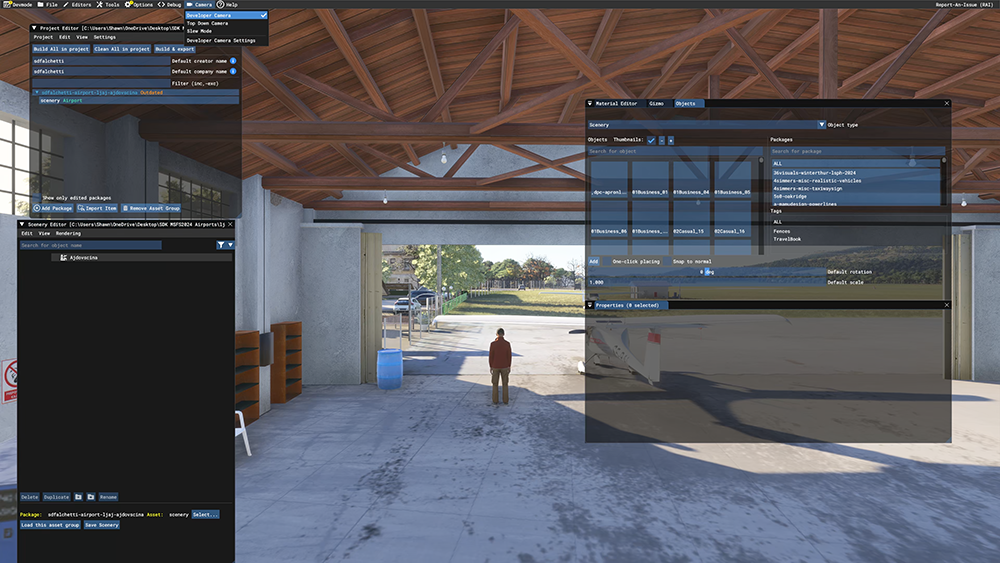
Your default windows may appear different than the picture above or some may be missing. You can hide/show these windows from the Project Editor and Scenery Editor windows, under View. Ensure the Objects window is visible.
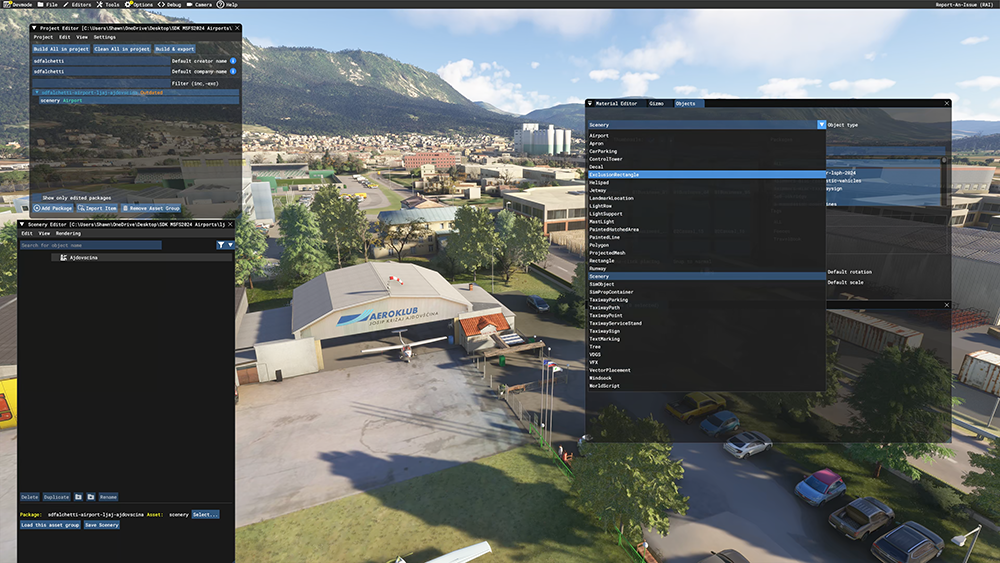
From the Objects window, change the Object type from Scenery to ExclusionRectangle
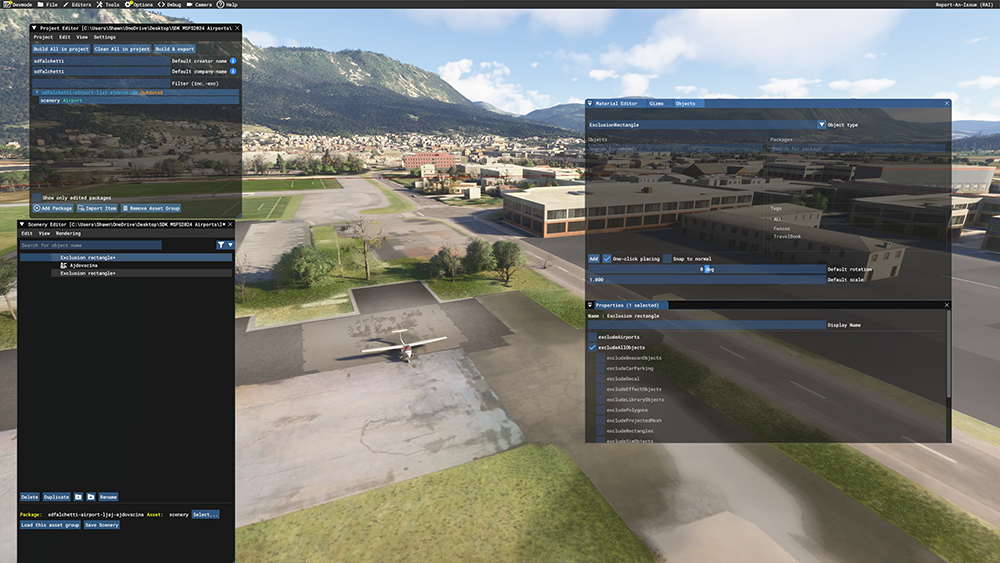
From the Objects window, tick the box to allow One-click placing. Move the camera so that you are viewing where you want to place the ExclusionRectangle, then click the Add button (that is next to One-click placing). Note by default the Developer Camera is enabled, which has its own movement controls. If you prefer to use the normal drone camera, just select Camera from the Developer Menu at the top and unselect Developer Camera.
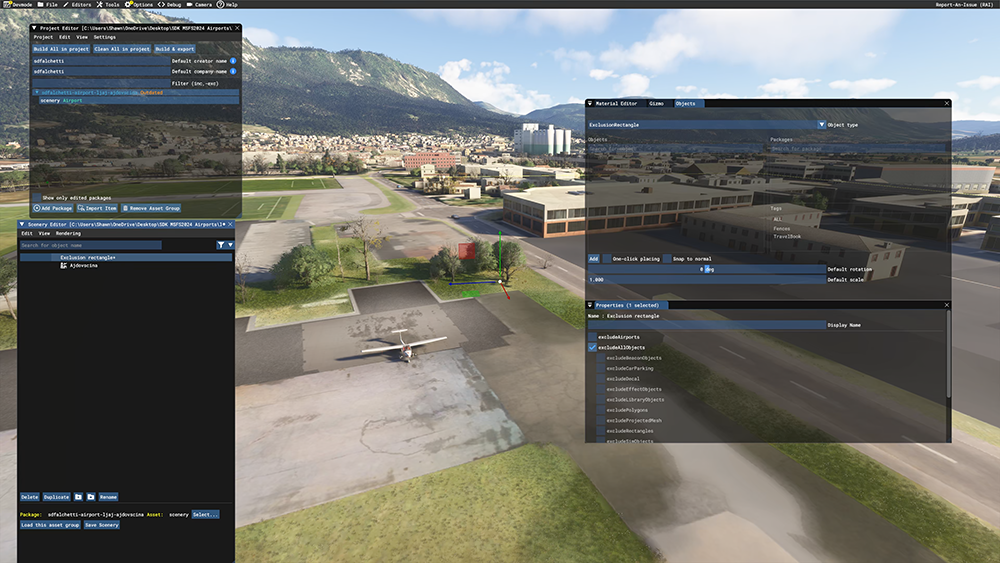
After you add the ExclusionRectangle, untick One-click placing. The Exclusion rectangle now appears as an object in the Scenery Editor window on the left. Select it. You will notice that it has wiped out all objects where it was placed. That is because by default the excludeAllObjects checkbox is ticked. Untick it. This will bring back all objects, including the overlapping ones.
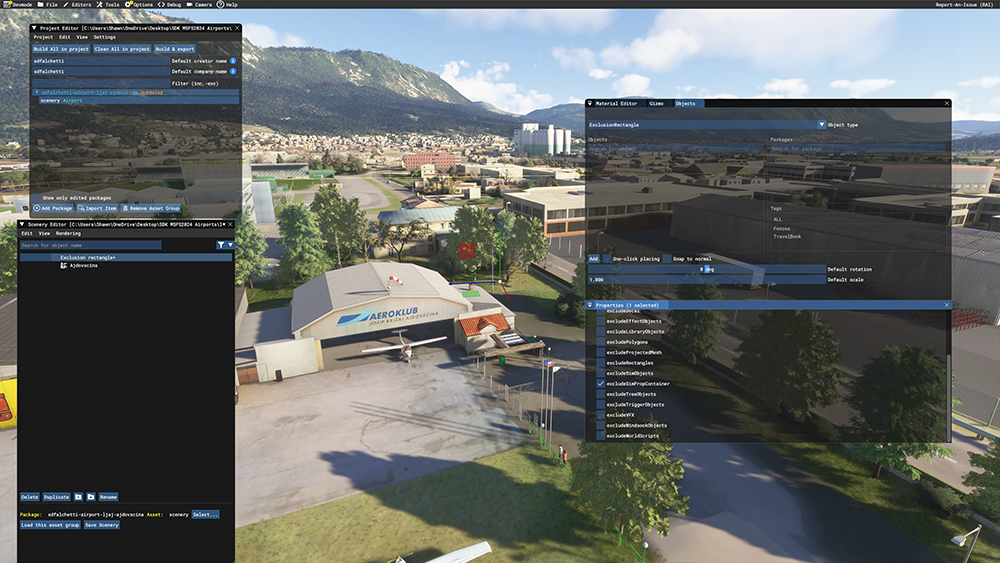
To exclude just default sim objects (which are creating the overlap issue), tick excludeSimPropContainer
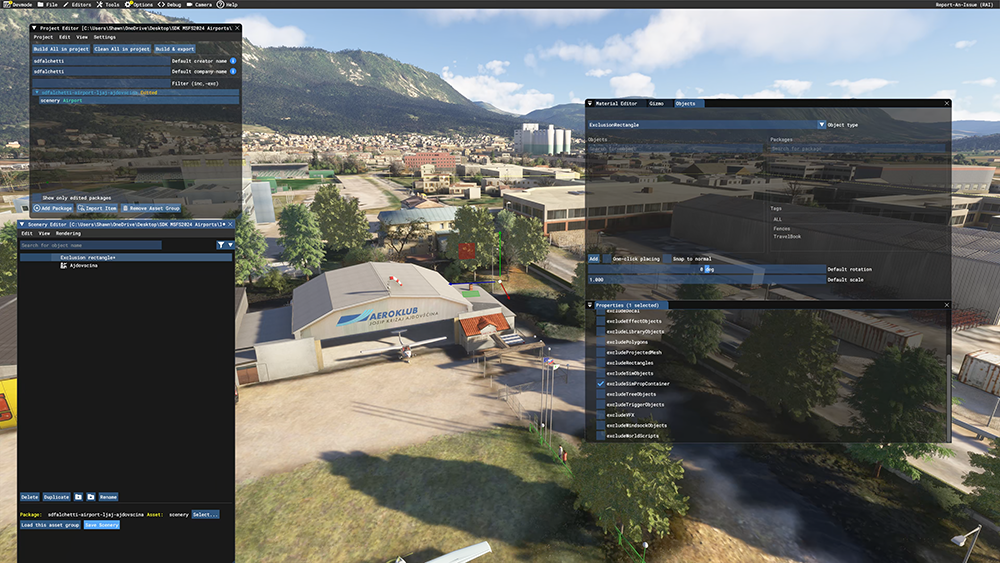
At the bottom of the Scenery Editor window, click the Save Scenery button
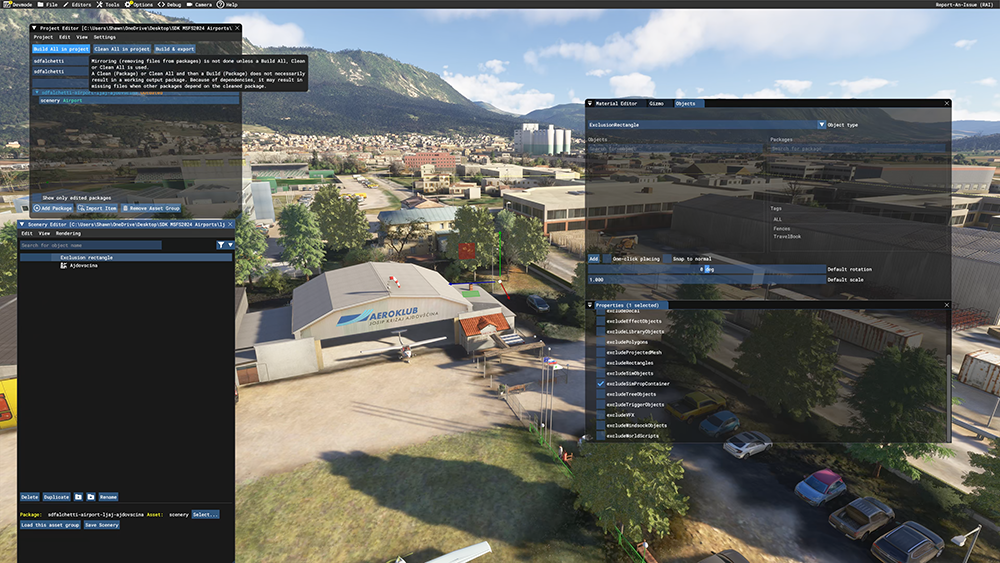
At the top of the Project Editor window, click the Build all in project button. This will compile the changes
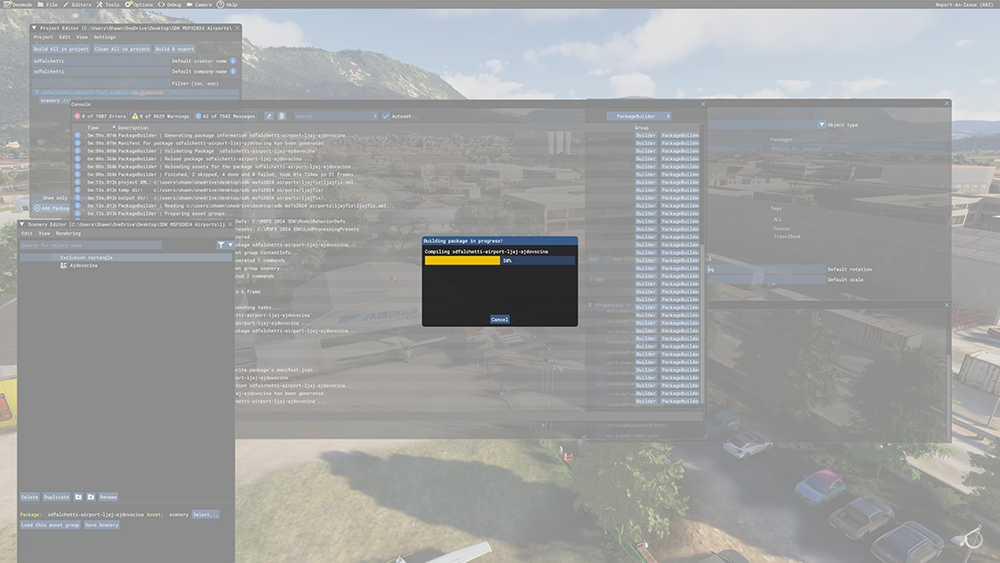
A progress bar will appear with the Console window displaying the compile actions and if there are any errors
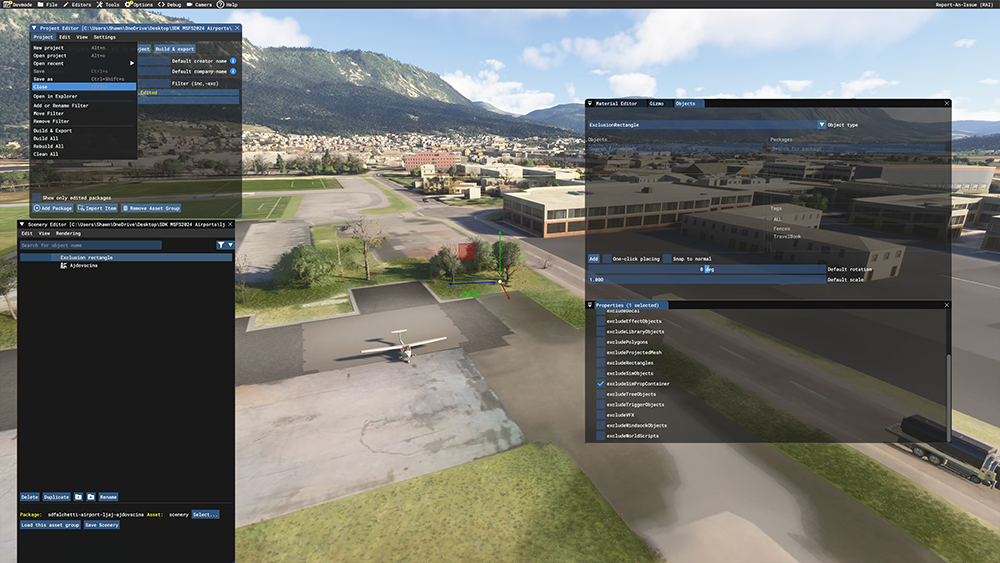
Once compiled, from the Project Editor window, select Project, Close
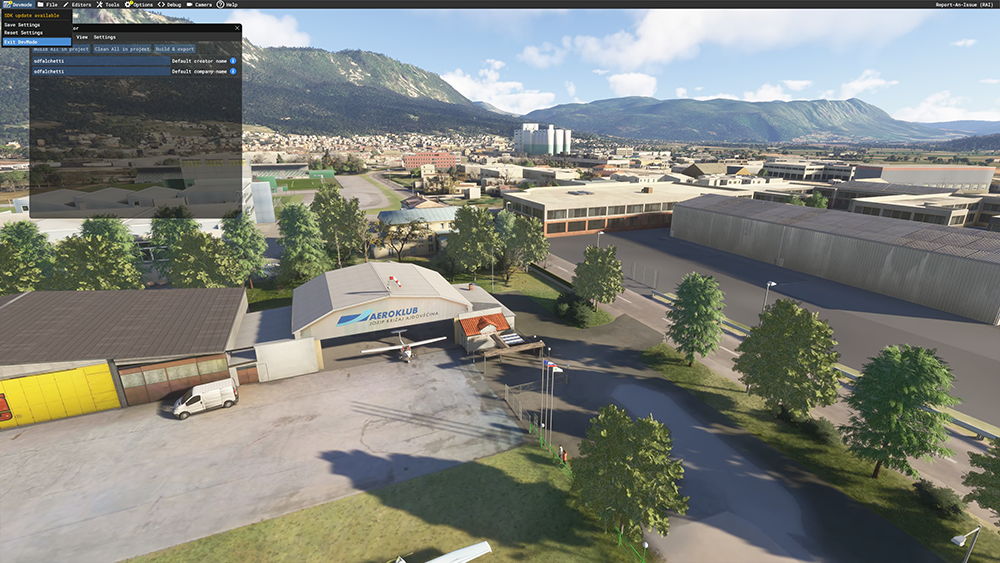
From the Developer menu, select Devmode, Exit Devmode. Exit MSFS2024
The final steps are on your computer:
On your computer, locate the folder with the package name your created (recall I saved mine in a folder on my desktop called SDK MSFS2024 Airports)
Open the Packages sub-folder within your package name folder. Mine, for example, was located in SDK MSFS2024 Airports→ljajfix→Packages
The folder name will be whatever company name and airport you used when creating it. Mine, for example, was sdfalchetti-airport-ljaj-ajdovscina
Copy this folder (mine was sdfalchetti-airport-ljaj-ajdovscina) to your MSFS Community folder. Your Community folder location depends upon whether you bought MSFS2024 from Steam or the Windows store, but mine for example is C:\Users\Shawn\AppData\Local\Packages\Microsoft.Limitless_8wekyb3d8bbwe\LocalCache\Packages\Community
Relaunch MSFS2024. The airports fixes will now be in place
Note this works for hiding default objects. Some MSFS2024 handcrafted airports use different types of objects that are not masked by ticking SimPropContainer. For those, you’ll need the freeware developer to make the mask fix
That’s it! Just place an Exclusion rectangle and most MSFS2020 airport problems can be fixed.
Note in this case I used LJAJ because I just did a YouTube video flying out of it, and wanted viewers to know how to fix the doubled buildings. I didn’t make LJAJ airport, however. It’s made by the amazingly talented Neptune11, whose freeware airports are better than many of the payware airports I’ve bought from others. He’s got a whole series of Slovenia airports that I intend to fly out of on my YouTube channel. I think all are still in MSFS2020 format and I didn’t want to bother him to request updates to MSFS2024, so I just made this simple fix myself. I am very appreciative, though, of his work and that he’s generously shared it for free with the flightsim community. I’ve made some freeware airports myself, such as my home field KWBW, and I’m not able to come close to the level of detail he creates, so a heartfelt thanks.